Submitting and payslip
Once your details, work days and receipts are right, you submit the rapport. The production team then checks it. After that you can no longer edit it yourself.
How to submit
Section titled “How to submit”-
Tap Submit at the top of the rapport.
-
If something is missing, Not complete yet — please fill in: appears with a list, for example “No work day recorded” or “Work day 2: Times missing”. Add the missing details and tap Submit again. Nothing goes to the production team until everything is right.
-
A dialog appears. If it asks Payslip by e-mail?, choose an answer (see below) and tap Submit. Either answer takes you further. Otherwise it only asks “Is everything correct?”, which you answer with Confirm.
-
The rapport now shows Rapport was submitted. vortex also sends you a confirmation by email.
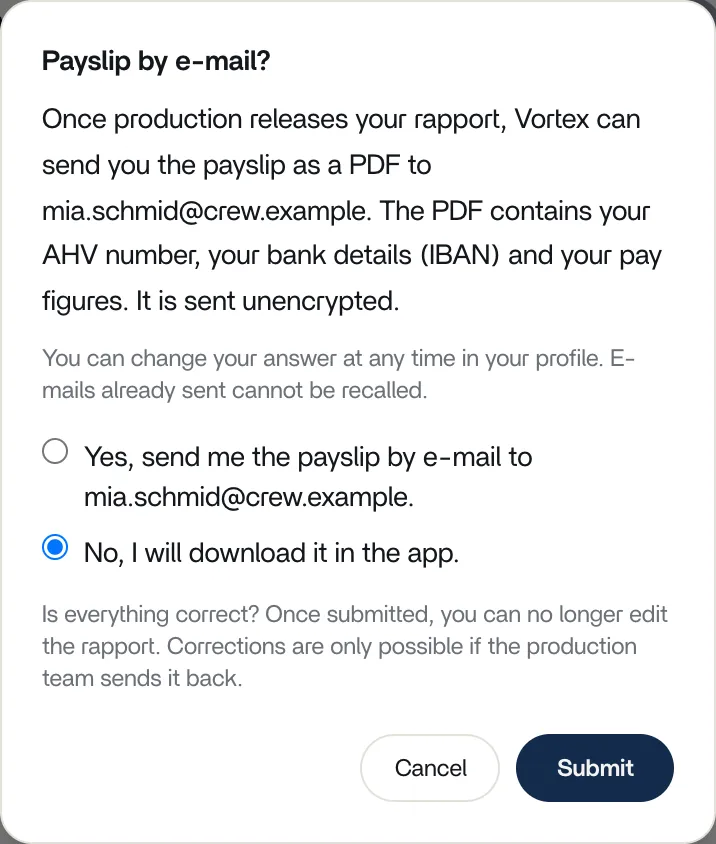
Payslip by email?
Section titled “Payslip by email?”The payslip is a PDF with your AHV number, IBAN and pay details. With Payslip by e-mail? you choose whether vortex emails it to you after approval. The email is sent unencrypted and can’t be recalled. If you choose No, I will download it in the app., vortex doesn’t email the PDF. If you’ve agreed, vortex doesn’t ask again. If you answer “No”, the question comes back the next time you submit.
You can change your answer at any time under My profile with Give consent or Withdraw consent.
The statuses
Section titled “The statuses”You can see the status in the Rapports list and, once the rapport is submitted, at the top of the rapport.
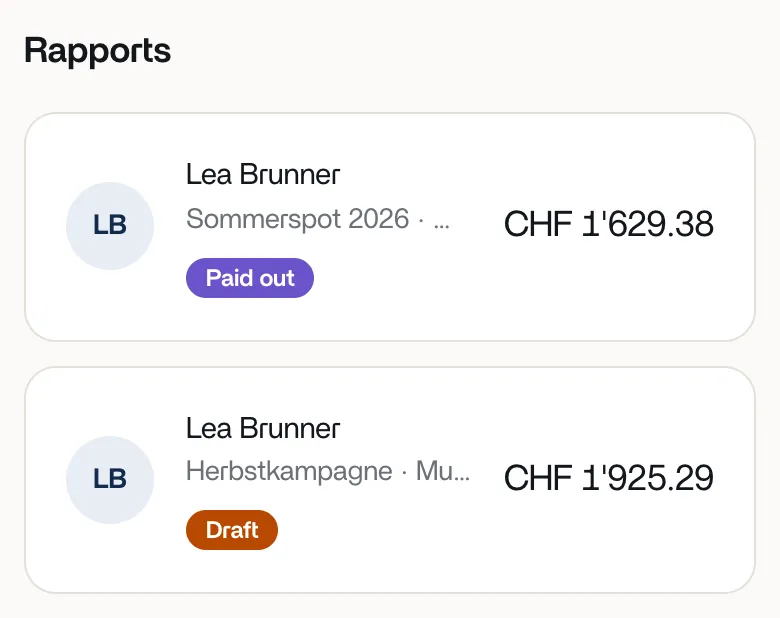
- Draft: you’re working on it and can change everything.
- Submitted: the production team is checking the rapport.
- Approved: the production team has checked and approved it. The payslip is ready.
- Paid out: the production team has marked the rapport as paid out.
Returned
Section titled “Returned”If the production team finds a mistake, it can send the rapport back and write a reason. You receive an email «Rapport zurückgewiesen» (“Rapport returned”; the emails are in German) with the reason and a link. The rapport is a Draft again. If there is a reason, it appears at the top after Returned by the production team:. Correct the rapport and submit it again.
Corrected by the production team
Section titled “Corrected by the production team”The production team can also correct a submitted rapport itself and add a comment when it approves. You can see this in the rapport:
- Adjusted by the production team on 24.09.2026. with the Comment from the production: …, if there is one.
- With show changed fields you can see every change: the old value crossed out, the new one next to it. With hide you close the view.
Payslip as a PDF
Section titled “Payslip as a PDF”As soon as the rapport is Approved, you download the payslip at the top of the rapport with Payslip (PDF). Before that, Payslip available after approval is shown greyed out.
When the rapport is approved, vortex sends you the email «Lohnabrechnung» (“Payslip”). If you agreed, the PDF is attached to the email. Otherwise the email contains a link to download it in the app.