Recording work days
You create one card for each work day. vortex calculates every day separately and adds everything up in the Pay preview.
How to do it
Section titled “How to do it”-
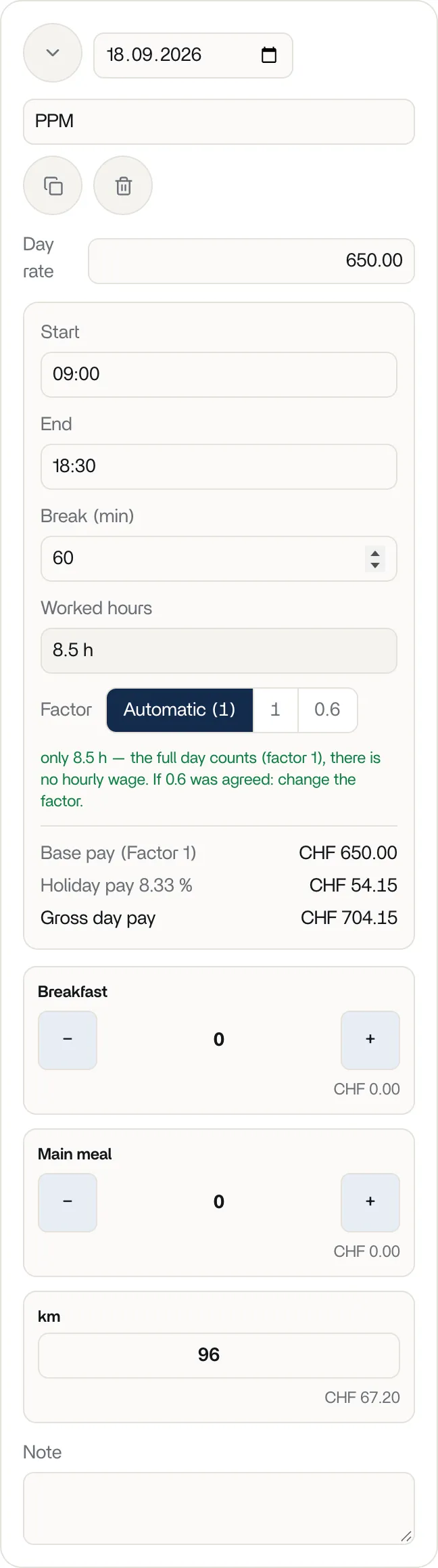
Under Work days, tap + Add work day. The new card opens.
-
Choose the date and enter a Label, for example “Shoot day 1”. Each date can only be used once. If it is already taken, vortex doesn’t save it and shows a notice.
-
Enter Start and End using digits only: “0830” becomes 08:30, “8” becomes 08:00. If the day ends after midnight, enter the time after midnight, for example 01:00.
-
Enter the Break (min) in minutes. This gives the Worked hours: end minus start minus break.
-
Check the Factor. Normally you leave it on Automatic.
-
Enter your expenses: use + and − to count Breakfast and Main meal, and enter the kilometres you drove in your private car under km. The amount is shown below each.
-
Add a Note if needed.
Full day or half day
Section titled “Full day or half day”Up to and including 5 hours of work, vortex calculates a partial day with factor 0.6 (60 %). Above that it calculates a full day with factor 1. Automatic takes care of this for you. If a day is shorter than 9 hours, a note under the factor explains what vortex calculates.
If something else was agreed, choose 1 or 0.6 yourself. The day is then marked override. Without times, vortex calculates no amount. The rules behind this are explained in How vortex calculates your pay.
A different day rate for one day
Section titled “A different day rate for one day”The Day rate field on the card shows your rate from the master data. If a different rate applies for one day, overwrite it there. override appears next to it. If your days have different rates, the pay preview shows mixed day rates.
Copying, deleting and sorting days
Section titled “Copying, deleting and sorting days”- The copy icon (Copy day) creates a copy with the next free date. A number at the end of the label goes up by one: “Shoot day 1” becomes “Shoot day 2”. The copy opens.
- The trash icon (Delete day) removes the day immediately, without asking.
- The cards are sorted by date, and days without a date come last. Only one card is open at a time; Collapse closes it.
- When collapsed, each row shows date, label, factor, duration and day pay. The dot is green if date and times are filled in, otherwise red.
Pay preview
Section titled “Pay preview”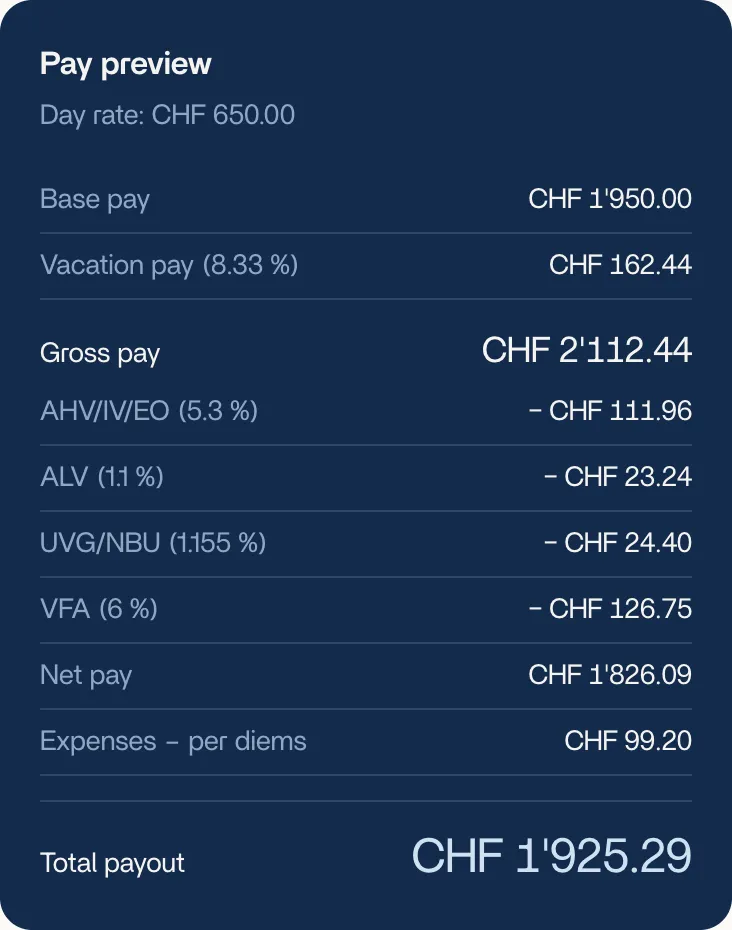
The Pay preview shows all days together: base pay, holiday pay, surcharges, gross pay, deductions, net pay and Total payout. On a computer it sits to the right of the form, on a phone below the sections. It recalculates with every change.